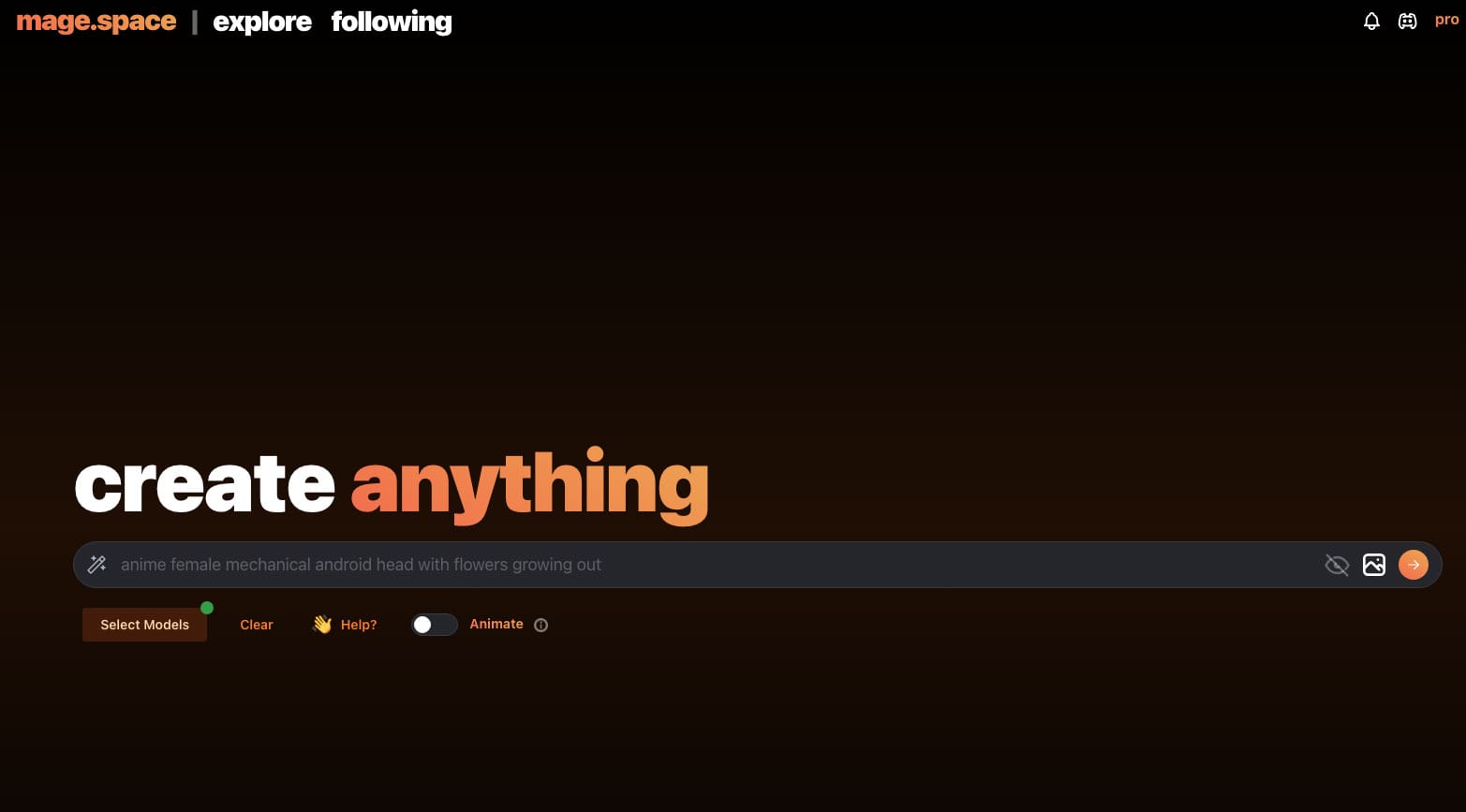
How to Create Consistent AI Characters in Mage.space (Complete 2026 Guide)
If you’ve ever tried to make a series of AI videos starring the same character, you already know the frustration. You write a careful prompt, generate something beautiful, then write the next scene — and the character is suddenly taller, younger, wearing different armor, with completely different eyes. The whole project falls apart because no two clips look like they belong together. This challenge can be overcome by creating consistent AI characters in mage.space.
This was the single biggest problem holding back AI video as a serious creative medium. It isn’t anymore. Mage.space’s Characters feature, currently in beta, lets you upload one reference image and reuse the same character across unlimited AI image and video generations — and once you understand how to set it up properly, it works remarkably well.
By focusing on creating consistent AI characters in mage.space, you can ensure that your videos maintain continuity and coherence, making them more engaging for viewers.
I’ve spent the last week building a cinematic YouTube channel using exactly this workflow. In this guide I’ll walk you through the entire process: how the Characters feature works, the three rules that make or break your reference image, and the exact prompt I used to create my own recurring character. By the end you’ll be able to build your own cast and use them across an entire video series.
Why character consistency is the hardest problem in AI video
Every AI video generator works by interpreting your prompt fresh each time. The same prompt run twice will produce two slightly different people, because the model is essentially imagining the character anew on every generation. For a single clip this doesn’t matter. For a series, it’s a disaster — and it’s the reason most AI creators stick to landscapes, abstract animations, or one-off character shots.
Solving character consistency unlocks an entire category of content: serialized storytelling, AI influencers, narrative shorts, recurring hosts, and full cinematic universes built from text prompts. It’s the difference between making clips and making content, especially when using consistent AI characters in mage.space.
Mage.space’s Characters feature solves this by anchoring future generations to a reference image you upload once. Instead of imagining your character from scratch, the model rebuilds the same face, build, and signature features every time, ensuring that you can create consistent AI characters in mage.space.
What is the Mage.space Characters feature?
Launched in late 2025 as part of Mage’s “New Mage” overhaul, the Characters feature lets you upload a single reference image and reuse that character across unlimited image and video generations on the platform. It works with all of Mage’s image and video models, including Cherry, Veo 3.1 Lite, Peach Max, Mango, and Guava Pro.
The workflow is simple in concept:
- Generate a single high-quality reference image of your character
- Upload it to the Characters tab and give it a name
- Select the character when building any future prompt
- Mage uses the reference to reconstruct the same character in the new scene
In practice, the magic — or the failure — comes down to the quality and structure of that one reference image. Get it right, and the character stays consistent across dozens of clips. Get it wrong, and the model drifts on every generation.
The 3 rules of a perfect reference image
After running dozens of tests, three rules separate reference images that work from ones that don’t. Follow these and your Characters feature output will be dramatically more stable.
Rule 1: Use a 3/4 angle or near-frontal pose, not a profile
The Characters feature needs maximum facial geometry to work with. Both eyes visible. The bridge of the nose. The full jawline. The complete hair silhouette. Profile shots — beautiful as they look — only give the AI half a face to work from, which means it has to guess at the other half every time you generate. Each guess is slightly different, which is exactly the drift you’re trying to eliminate.
Save your profile shots for content. Use a 3/4 or near-frontal image for the reference.
Rule 2: Even lighting on the face
High-contrast cinematic lighting looks gorgeous in finished content, but it hides facial structure under shadow. If half your character’s face is in deep shadow on the reference, the AI fills in that half with assumptions — and those assumptions change between generations. Your reference image should be lit well enough that all the major facial features are clearly readable. You can add cinematic shadows back later, in the actual videos.
Rule 3: Build in at least one strong anchor detail
The AI is much better at preserving distinctive, specific features than vague ones. “Has dark hair” gives the model nothing to lock onto. “Has a faint diagonal scar across the left cheekbone” gives it a clear target. Other powerful anchors: a specific tattoo, an asymmetric hairstyle, heterochromia, an unusual piece of jewelry, a signature piece of armor or clothing.
The more distinct anchors you build into your character, the more reliably they’ll come back across generations. My own character has three: a left-side undercut, a diagonal scar on the cheekbone, and cyan piping along her armor seams.
Step by step: creating your reference image
Here’s the exact workflow I use to create a character reference in Mage.space.
1. Choose the right model
For photorealistic characters, use Mango or Guava Pro — Mage’s exclusive fine-tuned photoreal models. Both are dramatically better at faces and skin than generic Flux or SDXL. For stylized characters (anime, illustration), Flux 2 or one of the Flux fine-tunes works well. Avoid generic SD 1.5 — it’s outdated for character work in 2026.
2. Set the aspect ratio to 1:1
Square framing helps the Characters feature isolate the subject when you upload. Set 1:1 in the advanced options before generating.
3. Use the cinematic character prompt formula
The formula that’s worked best for me:
Cinematic medium portrait of [SPECIFIC CHARACTER with anchor details],
[FACE/EXPRESSION], [HAIR + SIGNATURE FEATURE], [CLOTHING/COSTUME with
texture], [BACKGROUND context, blurred], shallow depth of field, shot
on 85mm anamorphic, [LIGHTING], [STYLE ANCHOR — one film reference],
photoreal, 1:1
4. The exact prompt I used
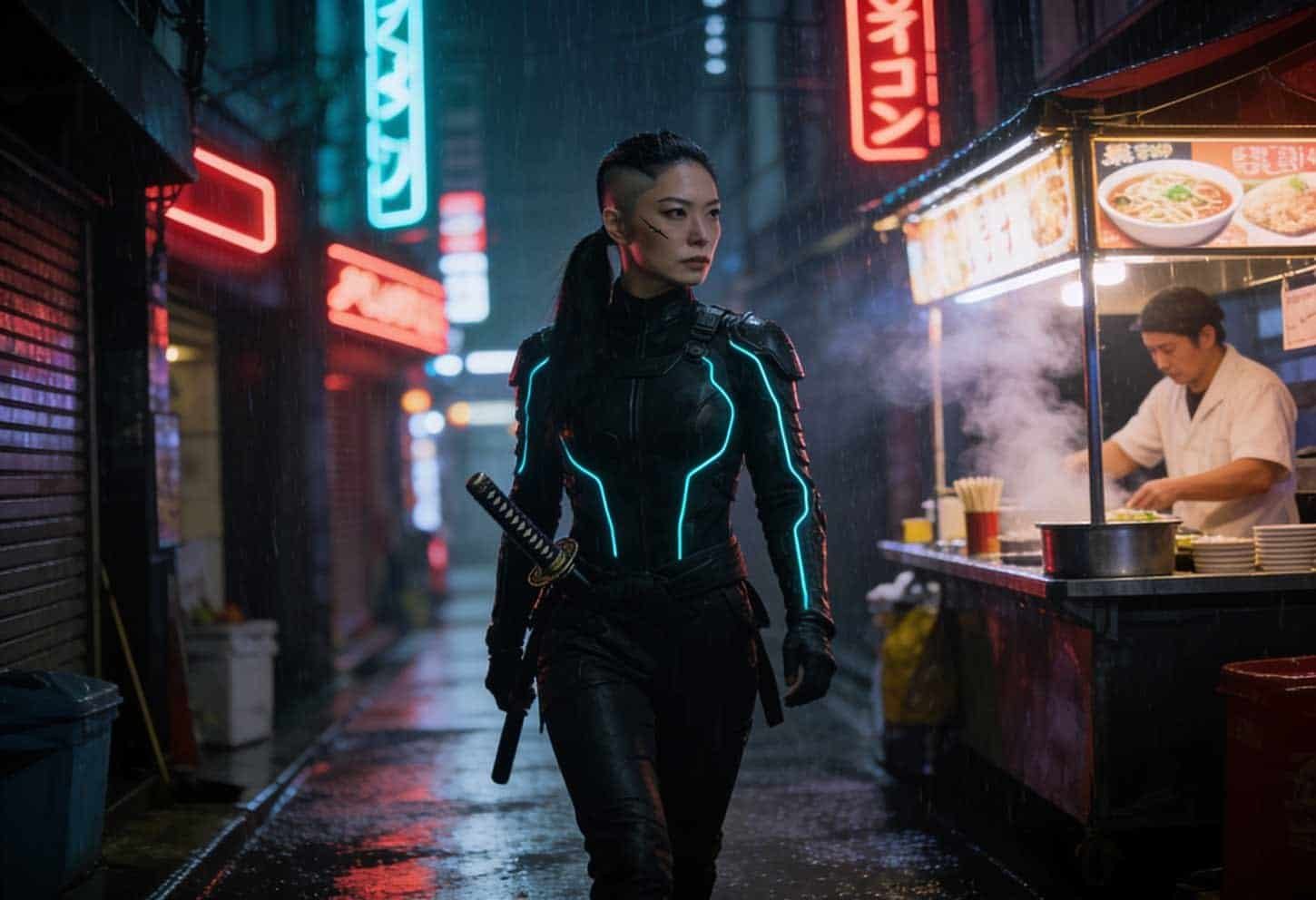
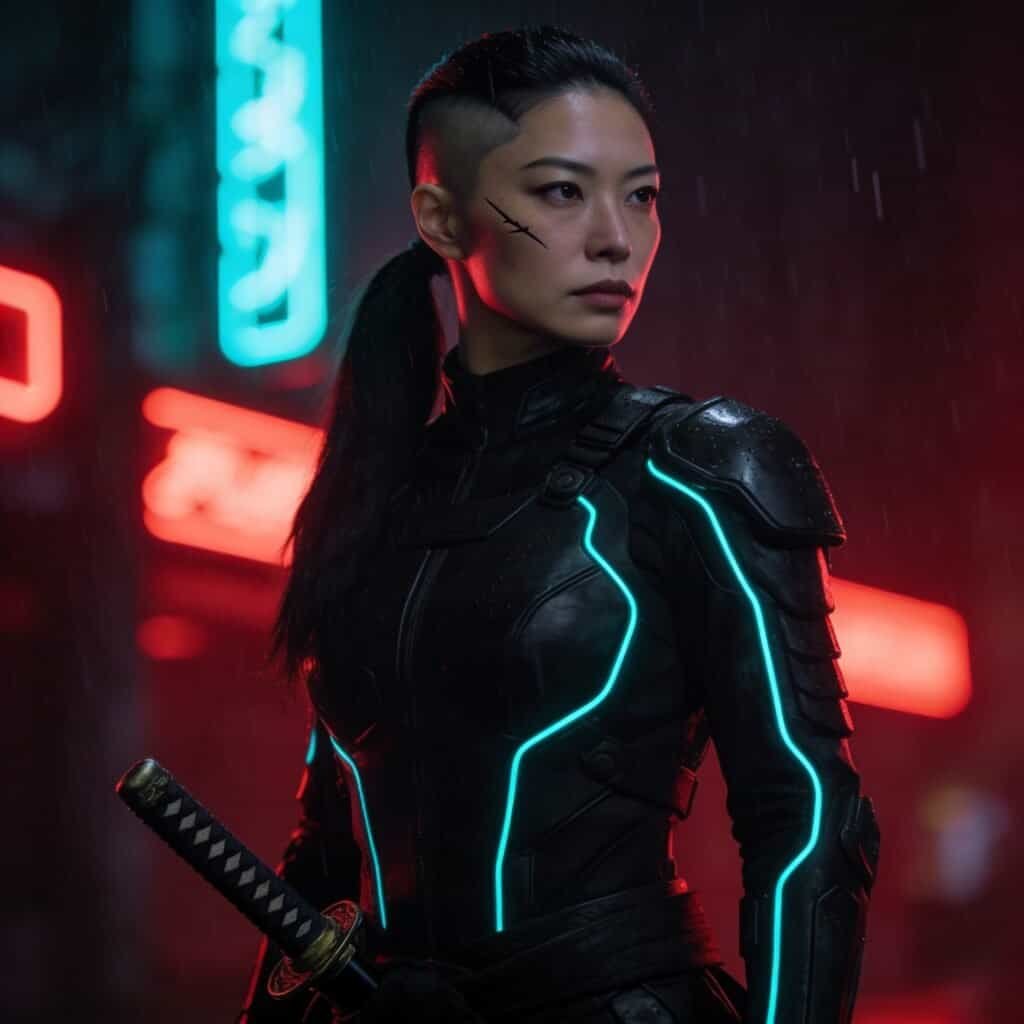
For my recurring cyber-samurai character, this is the prompt that produced the reference image at the top of this guide:
Cinematic medium portrait of a cyber samurai woman, Japanese, mid-30s,
calm intense expression, long jet-black hair pulled into a tight low
ponytail with a subtle left-side undercut, faint diagonal scar across
right cheekbone, wearing sleek matte black tactical armor with glowing
cyan piping along all seams, katana hilt visible at her hip, backlit
by deep red and cyan neon signage at night, light rain mist in the
air, shallow depth of field, shot on 85mm anamorphic, Blade Runner
2049 color grading, photoreal cinematic, 1:1
Notice the three anchors built in: the undercut, the scar, the cyan piping. Those are what keep her recognizable across every future generation.
5. Generate 4 variations and pick the strongest
Always generate at least four variations of your reference. You’re not looking for the prettiest one — you’re looking for the one with the clearest anchor details and most readable facial structure. Eyes both visible. Scar clearly placed. Costume details crisp. That’s your reference. Save the others as content.
Uploading to the Characters feature
Once you have your chosen reference image:
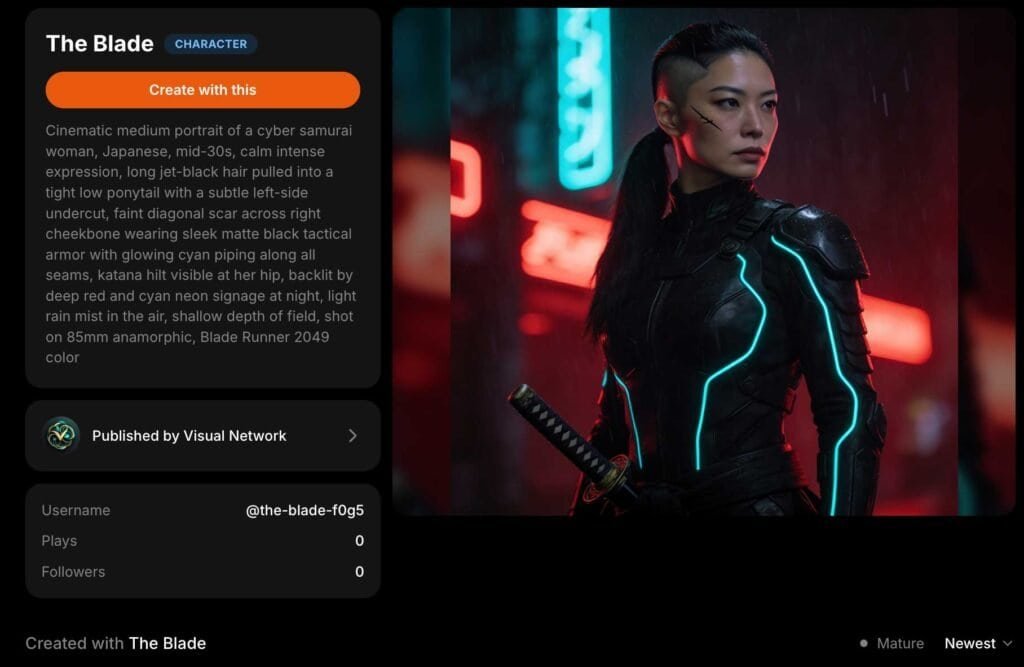
- Navigate to the Characters tab in Mage.space
- Click “Create New”
- In the New Character dialog, click the + symbol (Character Image) to upload an image, or choose amongst your creations.
- Give the character a name (you’ll use this in future prompts). You can add an optional description and tags.
- Click “Create Now” to Save.
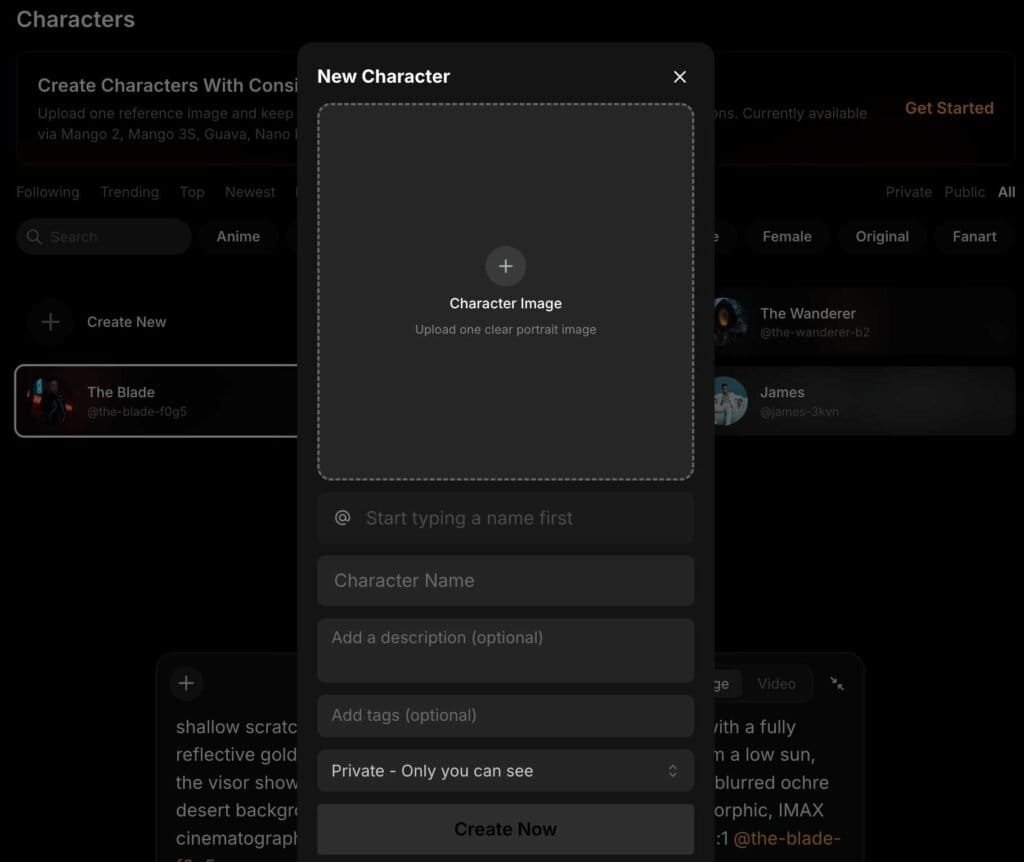
That’s it. The character is now available across every future generation.
Using your character in video generations
To bring your character into a video prompt, simply select them from the Characters dropdown before generating. You no longer need to describe them in detail in the prompt — Mage references the image automatically. Your prompt can focus on the scene, action, and cinematography instead.
Example — for a video featuring my character, the prompt becomes:
Slow tracking shot following [CHARACTER NAME] walking through a neon-lit
Tokyo alley at night in heavy rain, steam rising from a ramen vendor,
shallow depth of field, shot on 35mm, Blade Runner 2049 atmosphere, 9:16
The character description is gone — the reference handles it. This makes prompts shorter, more focused on cinematography, and far more consistent across an entire series.
Common mistakes to avoid
A few things I see people get wrong:
- Using a low-quality reference. If your reference image has artifacts, weird hands, or a glitchy face, the AI will faithfully reproduce those flaws in every future generation. Spend the time to get a clean reference.
- Choosing a profile shot. I mentioned this above but it bears repeating — profile shots look beautiful but make terrible references.
- Vague anchor details. “She’s pretty” or “he’s tough-looking” gives the model nothing. Specific, distinctive features are everything.
- Expecting perfection. Even with a great reference, you’ll see occasional drift — hair color slightly off, scar in the wrong place, costume detail simplified. This is normal. Generate two or three variations of each video clip and pick the best match.
A note on AI character consistency in 2026
The Characters feature isn’t magic — it’s the best tool currently available for a problem that’s still being solved. Expect roughly 80–90% consistency across generations when your reference image follows the three rules above. The remaining 10–20% drift is the price of working at the cutting edge. As Mage’s models continue to improve, this is the area where I expect the biggest gains over the next year.
For now, building strong anchor details into your character is the single highest-leverage thing you can do. The more specific and visually distinctive your character is, the better the feature works.
Wrapping up
Character consistency is what separates AI clips from AI content. Once you can reliably reuse the same character across a series, you can build serialized storytelling, recurring hosts, AI influencers, narrative shorts — entire creative universes built from prompts. The Characters feature in Mage.space, combined with the three rules above and a thoughtful reference image, makes this genuinely possible for the first time.
If you want to skip the prompt engineering and jump straight to results, I’ve packaged 30 cinematic Mage.space character and scene prompts — including the exact one used to create the character in this guide — over on Gumroad. Each prompt is paired with the recommended model, negative prompt, and notes on what makes it work.
Or, if you’d rather build your own from scratch, all the rules in this post will get you most of the way there. Either way — go make some characters.
Visual Network is a website with a YouTube channel showcasing the cinematic possibilities of AI video generation, built entirely with Mage.space’s Max-tier video models. Subscribe on YouTube to see the full series, and follow along for prompt breakdowns, model comparisons, and behind-the-scenes workflow guides.