
How do I find the Client ID and Client secret in Google?
You get a Google Client ID and Client secret from the Google Cloud console, under “APIs & services → Credentials”, by creating (or opening) an OAuth 2.0 Client ID.
Quick step-by-step
- Go to the Google Cloud console
- Open https://console.cloud.google.com and log in with your Google account.
- Select or create a project
- Use the project dropdown at the top (in the window top-left, right next to Google Cloud, click the bouton with the three hexagons – see picture under bullet point 5), pick an existing project or click New Project, name it, and select it.
- Configure the OAuth consent screen (if not done yet)
- In the left menu or under Quick Access, go to APIs & services → OAuth consent screen.
- Choose Get Started, then fill in the fields to the best of your knowledge: App Name, Support email (your email address), click Next. Choose External (typical for web/mobile apps), Contact information, add you email address again and click Next. Finish section, tick the box next to “I agree to the Google API services user data policy.“, click Continue. Then click Create. You will then be presented with a OAuth overview screen. Under Metrics – You haven’t configured any OAuth clients for this project yet, click Create OAuth Client. You can also access it like in the next bullet point.
- Create an OAuth 2.0 Client ID
- Go to APIs & services → Credentials.
- Click Create Credentials → OAuth client ID.
- Choose Application type (e.g. Web application, Desktop, iOS, Android). Most of the time, I usually choose Web application, but your use of this Application Type may be different. Then enter a Name for the client (this will not be shown to your app users).
- For web apps, fill Authorized JavaScript origins and Authorized redirect URIs which are the URLs of your particular app, then click Create.
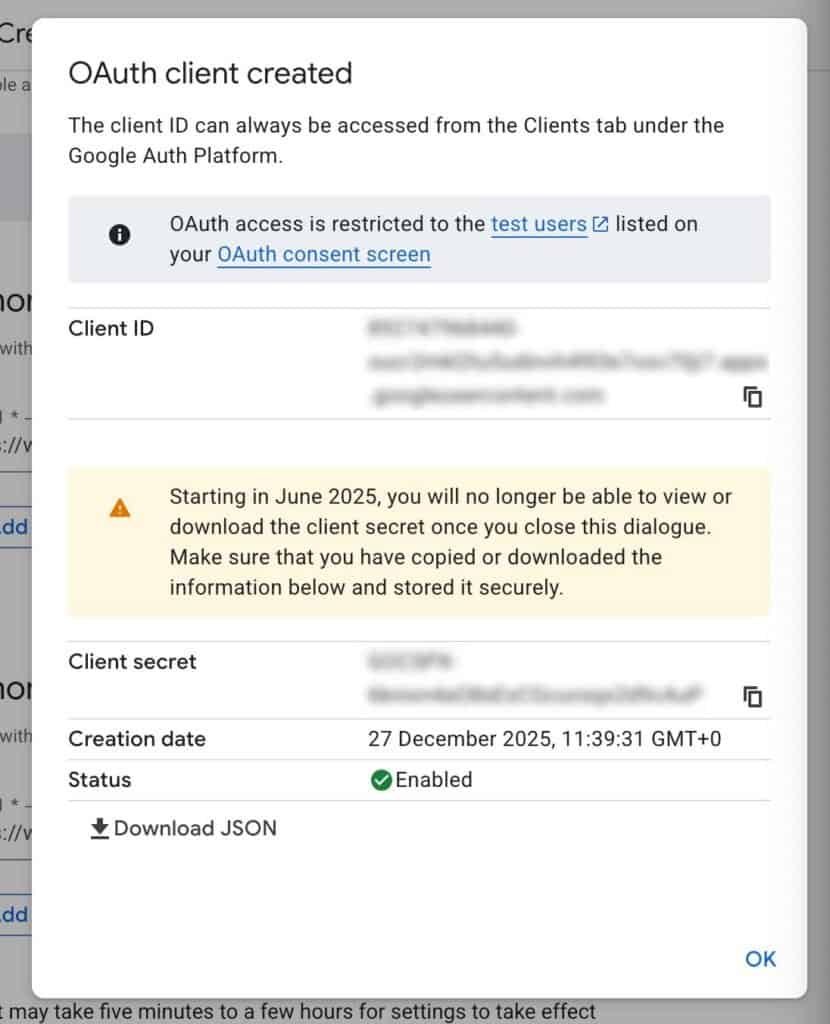
- Copy the Client ID and Client secret
- A dialog like the one below will pop up showing your new Client ID and Client secret; copy them and store safely (the client secret will not be shown to you again, so copy it and keep it safe on your computer somewhere you you will have to recreate it). Sometimes the dialog only contain the Client ID and you may have to recreate the OAuth 2.0 Client ID to be able to get a Client Secret to display. It happened to me while writing this tutorial.
- You can always return later to APIs & services → Credentials, click the OAuth 2.0 client entry, to find the Client ID again.
- In rare cases, you may also have to choose Google Auth Platform → Audience, and push the app into Production from a Test status.

Common gotchas
- No Client secret for some types: Certain client types (e.g. some Android/iOS) don’t expose a client secret in the same way; web and desktop apps do.
- Redirect URI must match: For “Sign in with Google” flows, the redirect URI in your app must exactly match what you set in the OAuth client, or Google will reject the request.
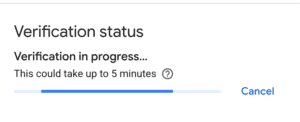
- In some case, you may be asked to Verify the branding, and let Google “verify the branding of your app” even though it does not seem related, for example I am currently trying to create Client ID and Secret strings to use in a SMTP plugin. What has branding got to do with this? Indeed… Note: “This could take up to 5 minutes” or way way longer!
In some other cases, you may have to Enable the API(s) linked to your project/app. For example, I had to enable Gmail API for my SMTP plugin to work. It kinda makes sense but hey.
If you say which stack you’re using (e.g. Next.js app on Netlify, local dev, etc.), a tailored URI/redirect-URI example can be outlined.